Setting up your own Euro Truck Simulator 2 (ETS2) server can enhance your gaming experience by allowing you to control the environment, invite friends, and enjoy a customized trucking adventure. This guide will walk you through the process of configuring an ETS2 server from scratch. Configuration adapts server to individual needs of the owner and players. A person with access to server files can change almost all parameters, such as maximum number of players, password and many others.
If you want to configure your Euro Truck Simulator 2 server follow this guide:
1. Stop your euro Truck simulator 2 server
Navigate “Console” tab in your server panel, then click on “Stop” button to stop your server.
2. Start basic configuration
Once your server is stopped, you can start changing your server parameters. To do this, you need to go to the “Startup” tab which contains most important parameters of your Euro Truck Simulator 2 server. The table below shows all variables you can change in “Startup” tab.
| Variable | Default Value | Description |
| Auto-Update Server | ON | If enabled, the server will update after each restart |
| Server Name | default value | Euro Truck Simulator 2 server name |
| Max Players | 8 | Maximum number of slots |
| Server Password | – | If set, players will be required to enter this password to join the convoy |
| Steam Auth Token | – | Authorization token used for integration with Steam services |
3. Perform advanced configuration
If the table does not contain the parameters you want to change, you can do it in the configuration file called:
server_config.siiAccess your server files by opening “Files” tab in your server panel.
Follow this path to find configuration file:
/home/container/.local/share/Euro Truck Simulator 2/server_config.sii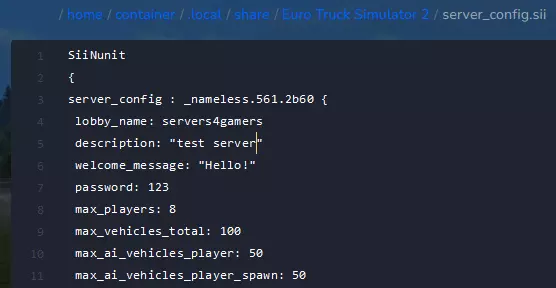
4. Restart your server
Once you are satisfied with the result of your server configuration, you must restart it to confirm all changes made. Go to the “Console” tab again and click on the “Restart” button to restart it.
We hope that our intuitive web interface has allowed you to manage your ETS2 server easily. If you want to ask us any questions, feel free to contact us via e-mail, ticket or live chat!
This tutorial will show you how to configure Euro Truck Simulator 2 server