Garry’s Mod server configuration gives administrators full control over all aspects of the game. It allows you to fully adapt the game to the needs of the often demanding community. The server allows you to install additional maps, mods and plugins that improve the gameplay and allow you to offer unique functions often unavailable on other servers. Experimenting with your server gives you the chance to test out different settings and game modes, which is welcome on Garry’s Mod servers!
How to configure Garry’s Mod server through our game server panel:
1. Stop your server
Open game server panel in your favorite browser and select your Garry’s Mod server from the list. You should be redirected to the “Console” tab where you can quickly select “Stop” button.
2. Change server variables
Once your server is stopped it’s time to change some parameters. Go to the “Startup” tab where you will find the most important variables.
| Variable | Default Value | Description |
| Auto-Update Server | ON | If enabled, the server will install the latest updates after restart |
| Server Name | default value | Garry’s Mod server name |
| Max Players | 16 | Maximum number of slots |
| Server Password | – | If set, players will be able to join the server after entering this password |
| RCON Password | – | Password required to obtain administrator privileges |
| Steam Account Token | – | Steam token which must be entered for the server to appear on the public list |
| Map | gm_flatgrass | Default map on server |
| Workshop ID | – | ID of workshop collection |
| Gamemode | sandbox | Game mode of your server |
| Tickrate | 22 | Tickrate defines how fast the server will update each entities location |
| Lua Refresh | OFF | Enable/disable Lua refresh |
| VAC Protection | ON | Enable/disable Valve Anti-Cheat |
3. Change more advanced parameters
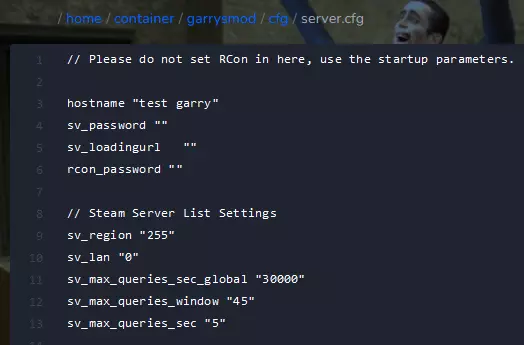
If you are not satisfied with the configuration performed in the “Startup” tab, you can change various parameters in the configuration file. Go to the “Files” tab to access the server files and follow this path: /home/container/garrysmod/cfg/server.cfg
4. Start your server
Come back to the “Console” tab and select “Start” button.
We hope that our intuitive web interface has allowed you to manage your Garry’s Mod server easily. If you want to ask us any questions, feel free to contact us via e-mail, ticket or live chat!
This tutorial will show you how to configure Garry’s Mod server