Server authorization is used to link a server instance with a Hytale account, allowing it to communicate with official services. In this guide, you will learn which commands to use to correctly perform a manual server-to-Hytale connection.
1. Go to the Startup tab in our panel and disable the Use GSP Authentication option.

2. Go to the Console tab and click Restart to restart the server.
3. Enter the following command into the console:
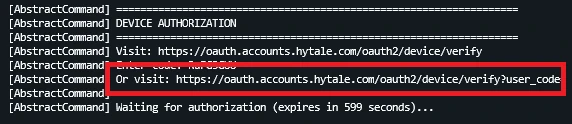
/auth login device4. After restarting, the server will display links that allow you to authenticate. Click the second one and you will be redirected to the Hytale website.
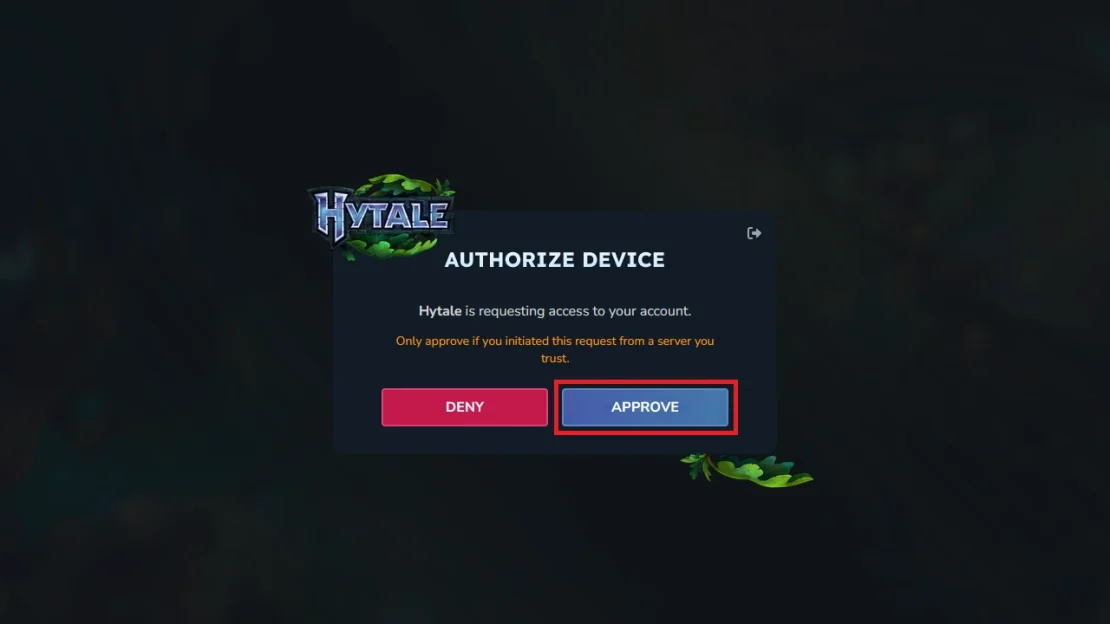
5. In the new window, click the Approve option to start the server authorization.
6. If you were not logged into your Hytale account, you will be prompted at this point to log in using your preferred method.
After a moment, you should see the following message in the server console:

If you do not want to authorize the server after every restart or reinstallation, use the following command:
/auth persistence Encrypted