Changing the version of a Minecraft server has huge implications for entire gaming communities. Each new version introduces significant changes that can greatly affect the operation of servers, their stability, and their appeal. Each version introduces a range of new blocks, items, mobs, or combat mechanics. Additionally, various features are changed and errors are corrected which affect the stability of gameplay. Besides changing the game client version, the administrator must manually change the server version. It is necessary to frequently update the server files and ensure that plugins, mods, and other tools are compatible with the server. In this guide, you will learn how to change the version of your Minecraft server using our intuitive game server panel.
How to change Minecraft version via Versions tab
The first option that allows you to install any version of the Minecraft server is the “Versions” tab available in our game server panel. Follow these steps to install the version correctly:
1. Go to “Console” and stop the server.
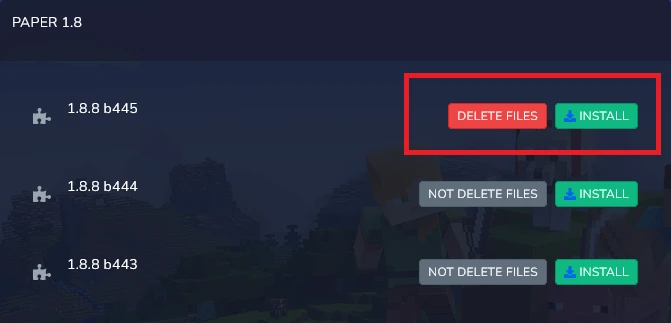
2. Go to “Versions” and find the version you want to install. Next to the “INSTALL” button, you’ll find the “NOT DELETE FILES” option – click on it to switch it to “DELETE FILES”.
If your option is selected as shown in the image, all files will be deleted and a new world will be generated.
3. Click “INSTALL”.
4. Go back to “Console” and click “Start”.
How to change Minecraft version via Startup tab
The second option allows you to change the Minecraft server version in a different way. To do this:
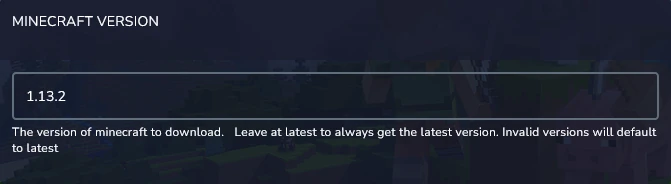
1. Go to the “Startup” tab and locate the “Minecraft Version” option (it may be named differently depending on the fork).
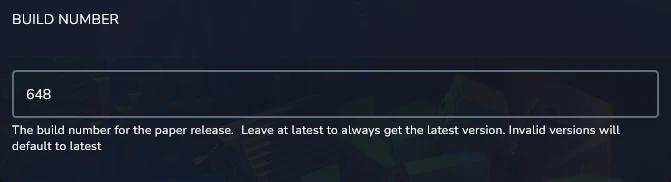
Additionally, you can find the “Build Number” option here, where you can enter the number of the chosen build – this option is available, for example, for Paper servers.
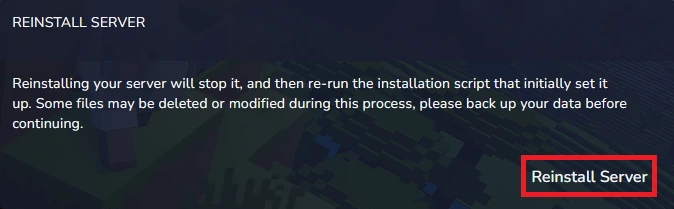
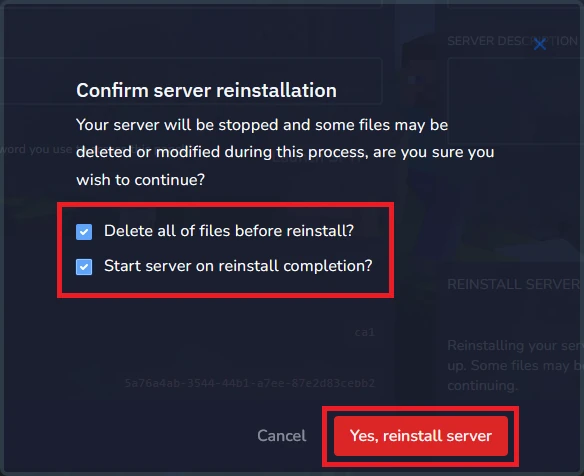
2. Go to the “Settings” tab and click “Reinstall Server”.
Check both available checkboxes – one will delete all files during reinstallation, and the other will start your server once the process is complete.
We hope that our intuitive web interface has allowed you to manage versions easily. If you want to ask us any questions, feel free to contact us via e-mail, ticket or live chat!