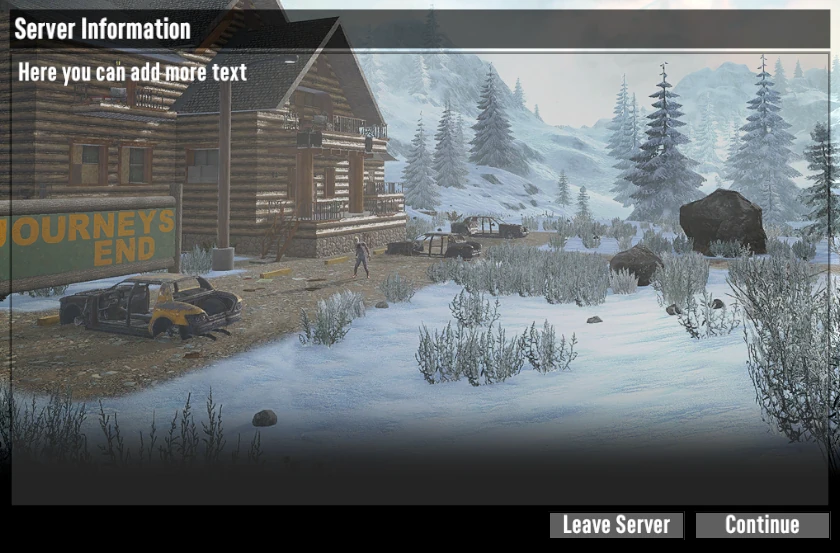
The server description and website URL are very important elements that help players decide whether they want to join your server. This information is visible in the server browser and often determines whether someone chooses your server over others.
In this guide, you will learn how to change your server description and add a URL to your 7 Days to Die server.
Customizing Your Server Information
You can apply all of these changes in our game server panel by editing the serverconfig.xml file or by using the Startup tab.
Server Description
To change your server description, you need to:
1. Stop the server.
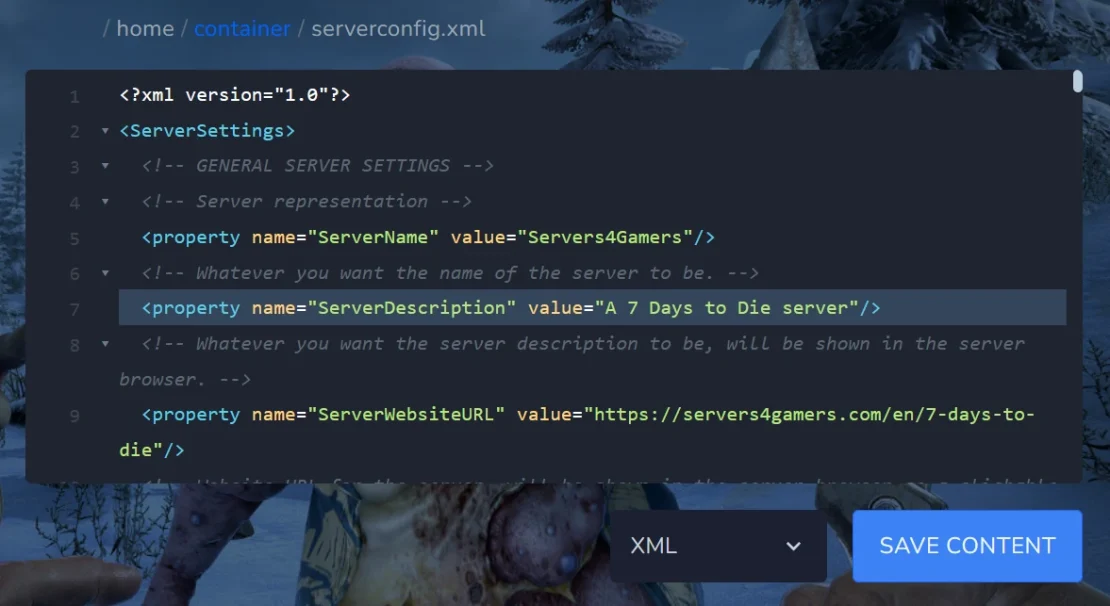
2. Go to Files and select the serverconfig.xml file.
3. Find the ServerDescription variable and enter your description there. Once you are finished, save the file.
4. Restart the server.
Server Website URL
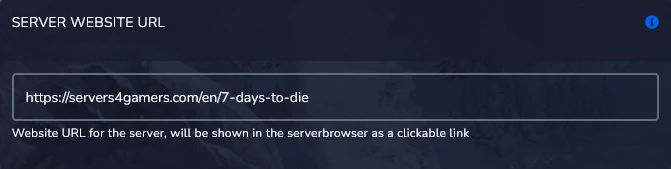
The ServerWebsiteURL setting allows you to add a link to your website, Discord server, or another community platform. This makes it easy for players to find more information about your community. It’s a simple way to increase engagement and make it easier for players to connect with you.
To change the server URL:
1. Stop the server.
2. Go to the Startup tab and find the Server Website URL field. Enter your link there.
3. Start the server.
Server Login Confirmation Text
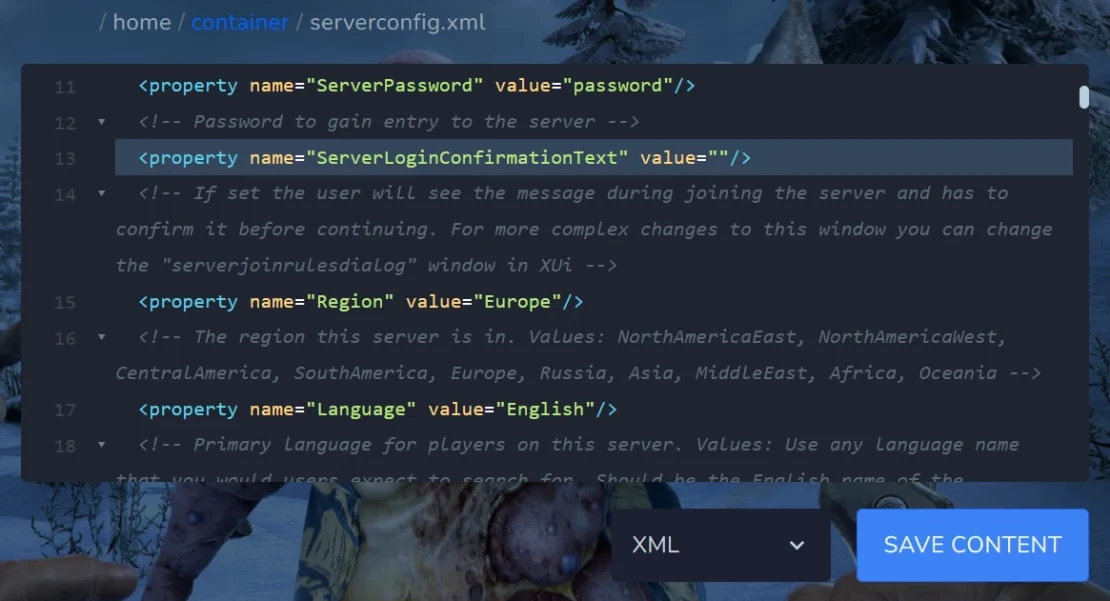
There is an additional variable worth editing called ServerLoginConfirmationText. It controls the confirmation window that appears before a player joins the server. You can place important information there, such as server rules, wipe details, or any other messages you want players to see. It’s a very useful feature that is worth configuring when updating your server description and URL.
To change ServerLoginConfirmationText:
1. Stop the server.
2. Go to Files and open the serverconfig.xml file.
3. Find the ServerLoginConfirmationText variable and enter your additional text there, then save the file.
4. Start the server.
From now on, your server will be properly described on the official server list.
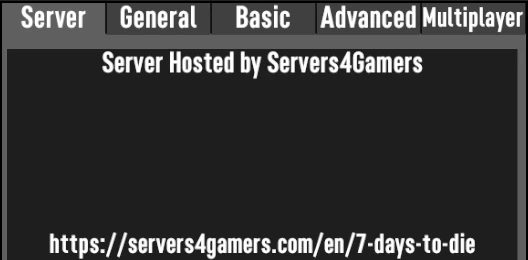
Additionally, before joining the game, players will see a confirmation window with your custom message, which they must accept before finally entering the world.