Beta Branch is a test version of the game that allows players early access to new, yet-to-be-official features and improvements in Avorion. It’s a great option for those who want to experiment with new mechanics and support developers by identifying bugs. Beta Branch isn’t limited to single-player gameplay – you can successfully install a selected version on your dedicated server as well. In this guide, we will explain how to install the Beta Branch on an Avorion server using our intuitive control panel.
How to install beta branch
If you want to use the beta branch on your server, follow these steps:
1. Go to the control panel and select Avorion server.
2. Go to the “Startup” and navigate “Beta Branch” option.
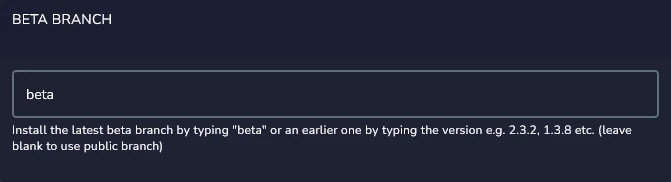
3. Enter the beta version you wish to install. Available versions:
- beta – latest build
- 0.28.1
- 0.29.5
- 0.30.2
- 0.31.2
- 0.32.2
- 1.0.0
- 1.1.4
- 1.2.0
- 1.3.8
- 2.0.11
- 2.1.0
- 2.2.2
- 2.3.2
- 2.4.3
- 2.5.2
- previous – previous build
4. Go to the “Settings” and click “Reinstall Server“.
5. Confirm with “Yes, Reinstall Server“.
If you want to start a new save, select the option to delete all files.
How to install public branch
If you have changed your mind and want to use the public branch again, follow these steps:
1. Go to the “Startup” and select “Beta Branch“. Delete the current version and leave the field blank.
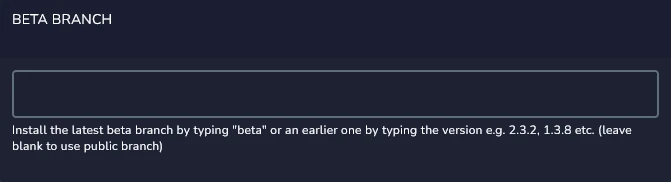
2. Go to the “Settings” and click “Reinstall Server“. Confirm with “Yes, Reinstall Server“.
We hope that our intuitive web interface has allowed you to configure your Avorion server easily. If you want to ask us any questions, feel free to contact us via e-mail, ticket or live chat!