Joining a Palworld server allows you to play multiplayer together with other players. In this guide, we’ll show you step by step how to join a Palworld server using an IP address or the Community Servers list, as well as what to do if the server is protected by a password.
How to join Palworld server with IP
1. Launch Palworld.
2. Once you are in the main menu, select Join Multiplayer Game.
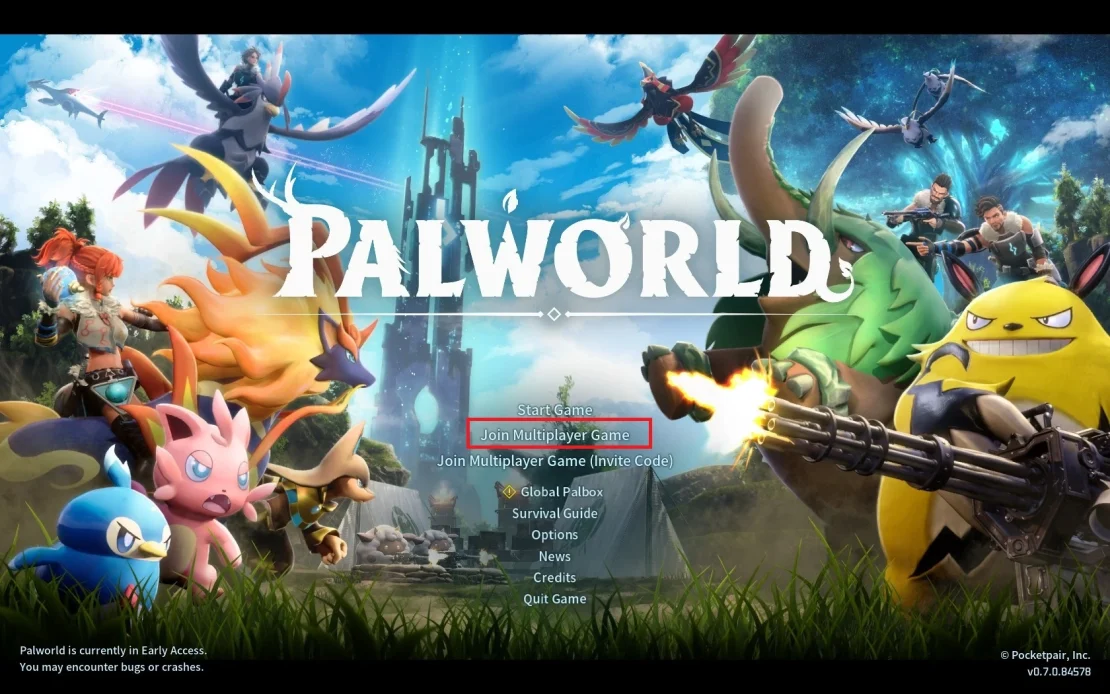
3. At the bottom of the window, you will find a field where you can paste your server IP address and port. If you don’t know your server address, log in to our control panel and check it in the Console or Network tab, then copy and paste it. After entering the correct address, click Connect.
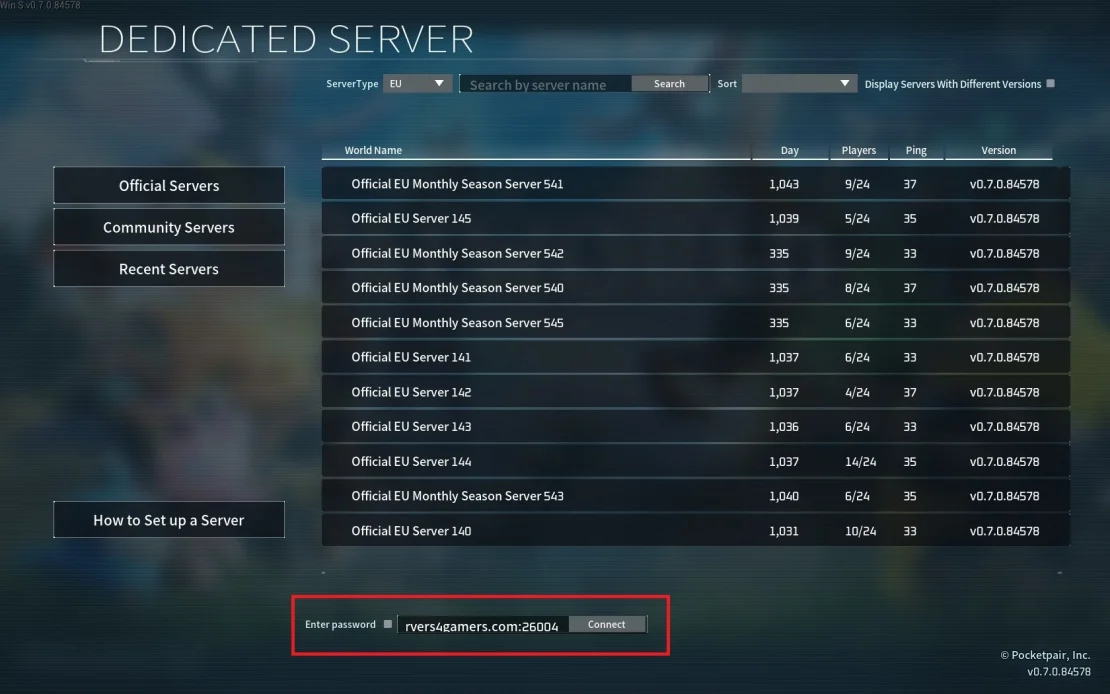
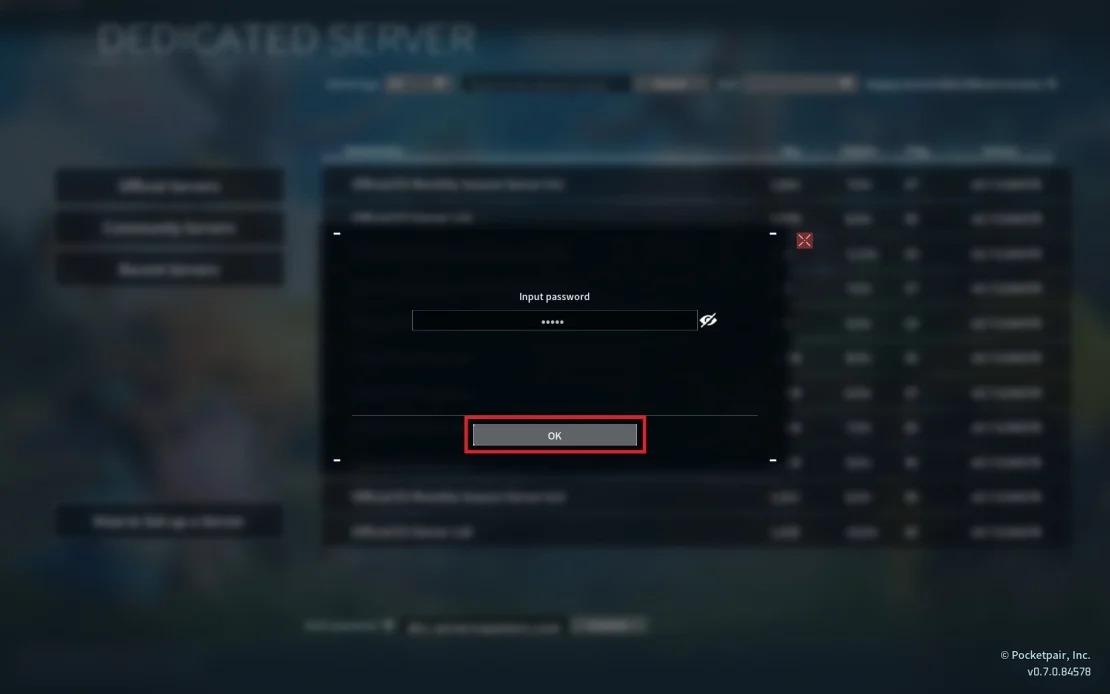
4. If your server is protected by a password, make sure to check the Enter Password option before clicking Connect. This will open an additional window where you can enter the password. If you want to set or check the password, go to the Startup tab in our control panel and remember to restart the server after making any changes.
How to join Palworld server via community server list
1. Launch Palworld.
2. Once you are in the main menu, select Join Multiplayer Game.
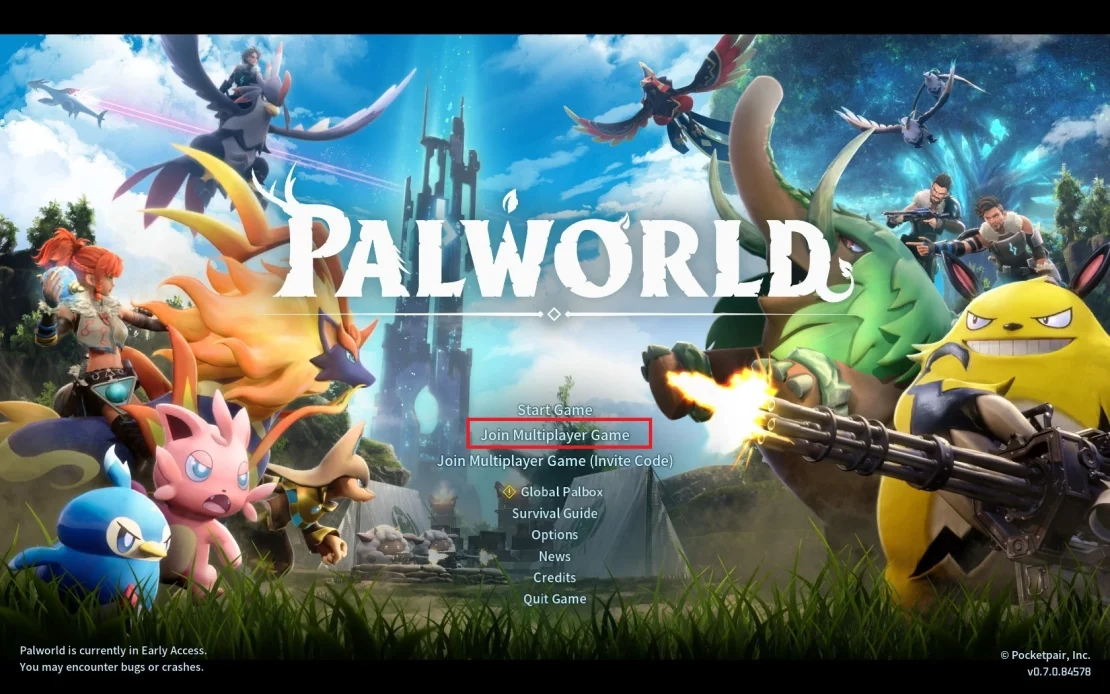
3. Go to the Community Servers section.
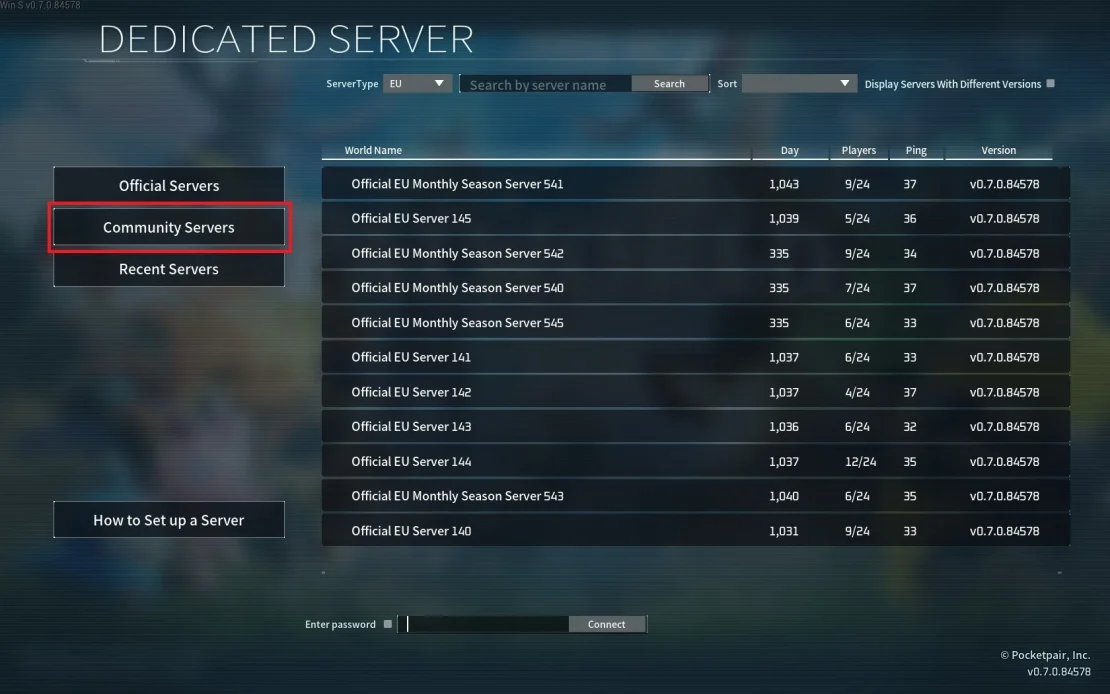
4. At the top of the window, you will find a field where you can enter your server name, then click Search. If you don’t know your server name, go to the Startup tab in our control panel to check it.
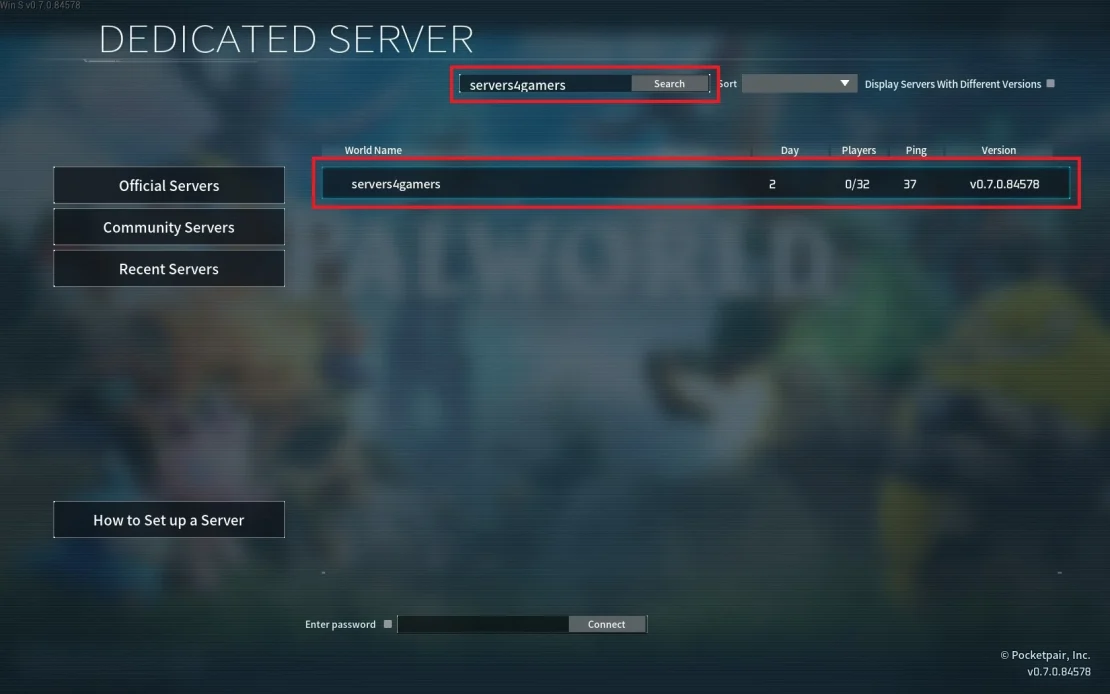
5. After clicking on your server entry, an additional window will appear – select Yes.
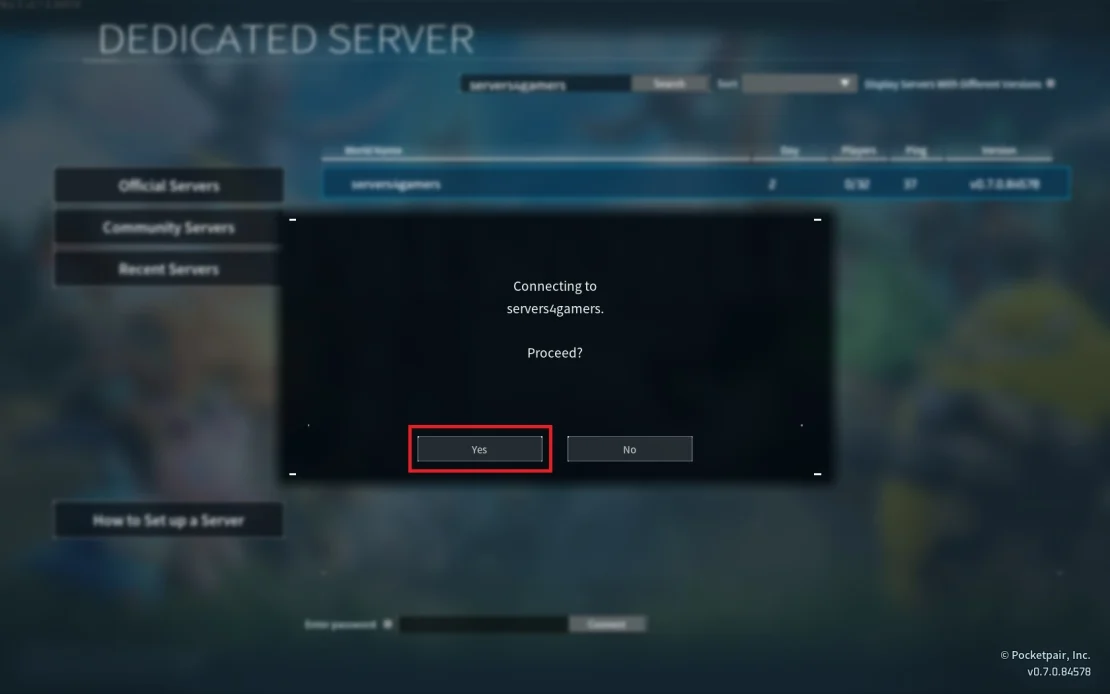
At this point, you may be prompted to enter a password if one is set. The server password can be configured in the Startup tab in the control panel.
Common Connection Issues
Here are the two most common issues:
Server not visible in the list (different game version)
Fix:
- enable the Show servers with different versions option to display the server,
- for the best experience, go to the Startup tab in the control panel, enable automatic server updates, and restart the server so it runs on the latest game version.
Server password is set, but Enter Password is not selected
If the server is protected by a password and the Enter Password option is not selected when connecting via IP, the game will not prompt you to enter the password and the connection will fail.
Fix:
- Before clicking Connect, make sure the Enter Password option is checked whenever the server has a password enabled.
We hope that our intuitive guide has allowed you to connect Palworld server easily. If you want to ask us any questions, feel free to contact us via e-mail, ticket or live chat!