This article explains how to configure the MapRemotePlayerVisibility option in Project Zomboid to control player visibility on the map. This setting allows server administrators to decide whether players can see only themselves, members of their faction, or all players on the server. It’s a simple yet very useful option that helps you tailor gameplay, improve immersion, and adjust server rules to suit your players’ needs.
How to Show Players on a Map on a Project Zomboid Server (Server Settings)
1. Go to control panel and select your Project Zomboid server.
2. Go to the Console and Stop your server.
3. Go to Files and follow this path:
/home/container/?/Zomboid/Server/main.ini
4. Edit the file and find the MapRemotePlayerVisibility= option.
Set one of the three options:
1 = No players are visible
2 = Only players from the same faction are visible
3 = All players are visible
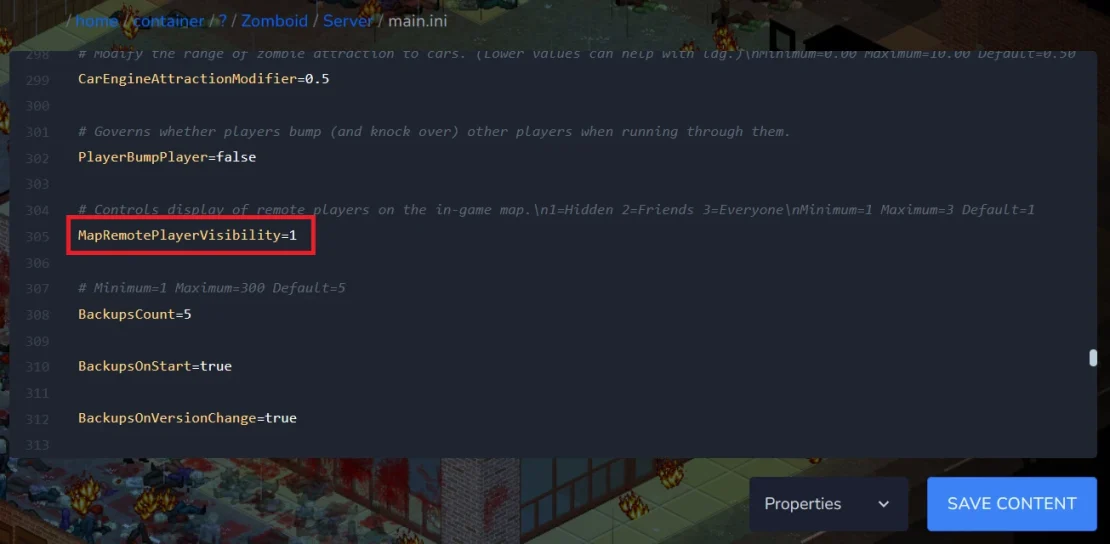
5. Save the file.
6. Go to the Console and click Start to launch the server.
How to Show Players on a Map on a Project Zomboid Server (Admin Panel)
1. Join the Project Zomboid server as an administrator. If you haven’t granted yourself admin privileges yet, you can use this command:
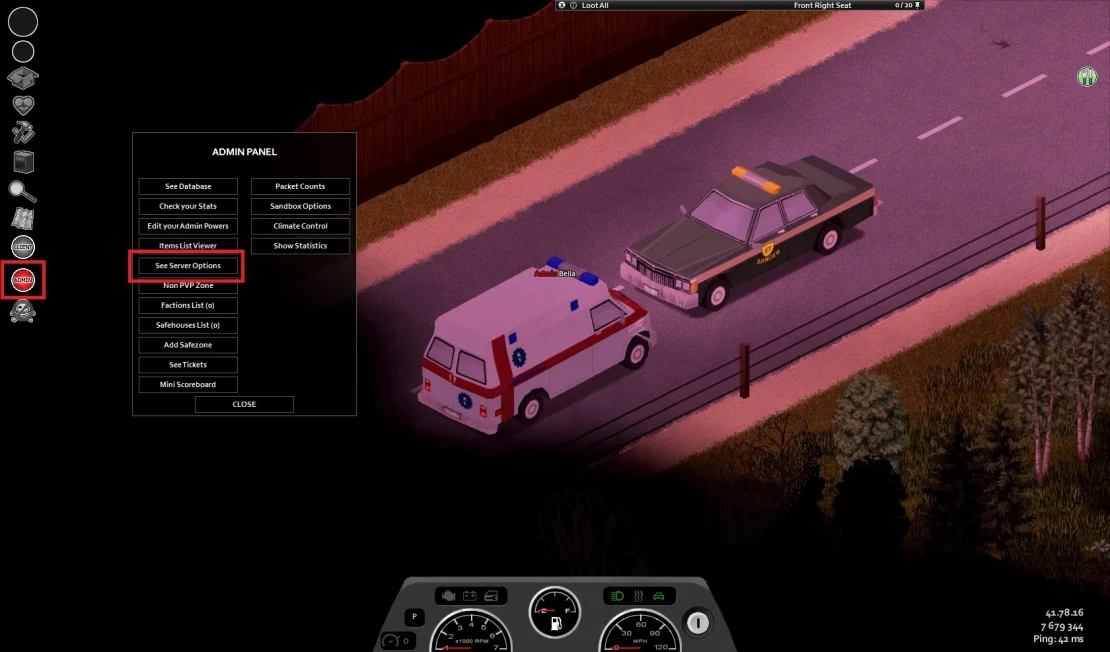
SetAccessLevel [Username] admin2. On the left side of the window, select Admin, then click See Server Options.
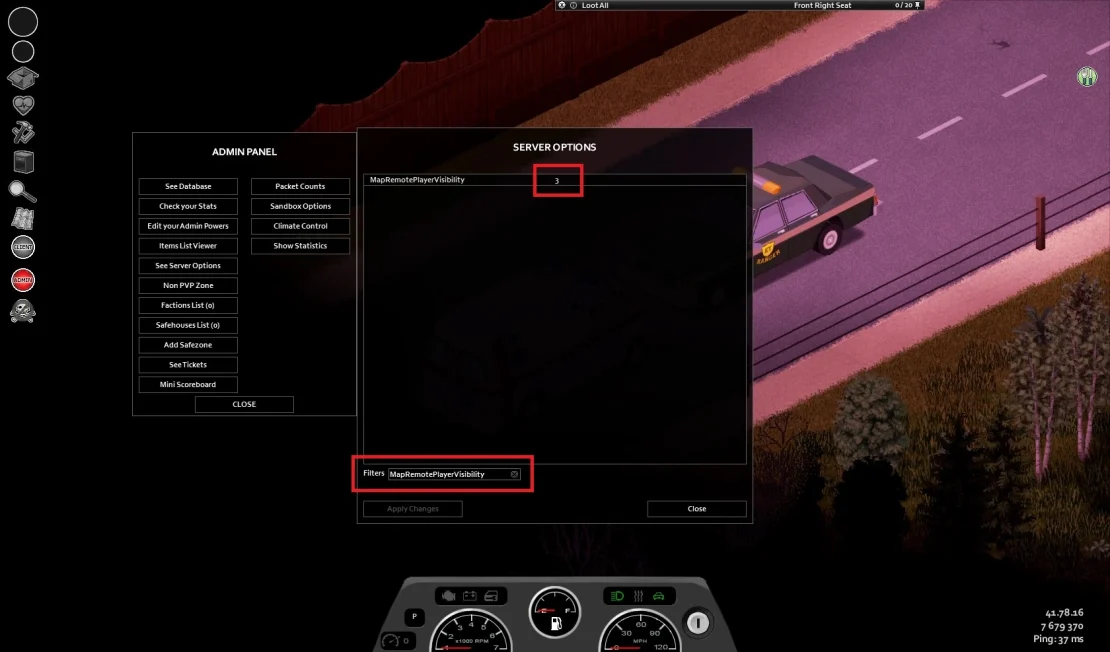
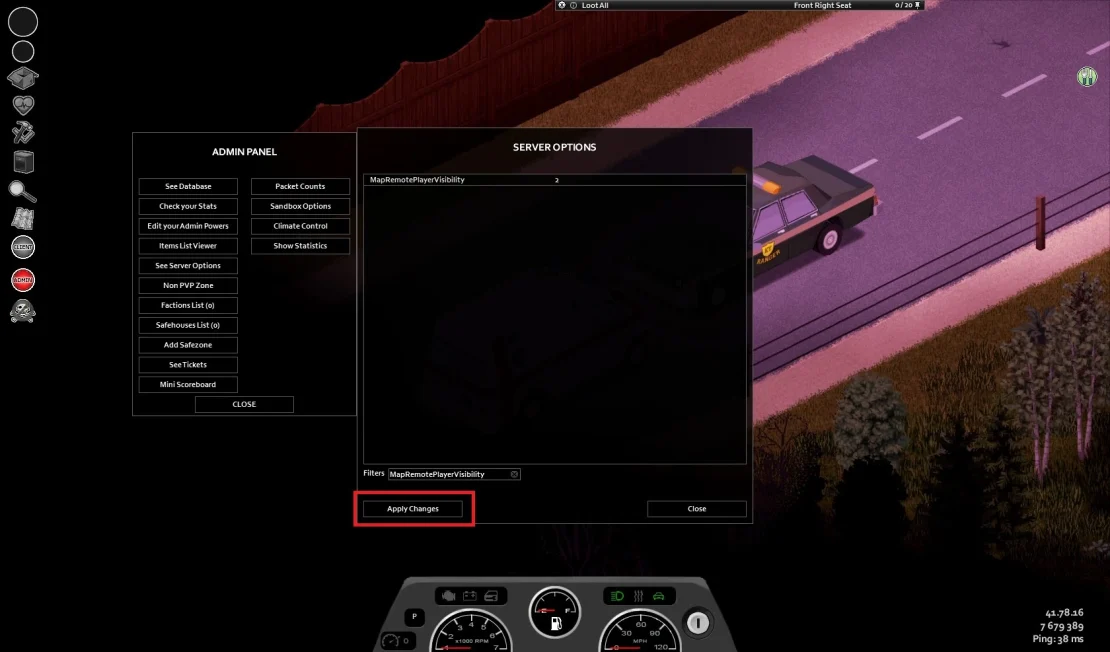
3. Paste MapRemotePlayerVisibility into the filter and select it from the list.
4. Enter the desired value and click Save.
1 = No players are visible
2 = Only players from the same faction are visible
3 = All players are visible
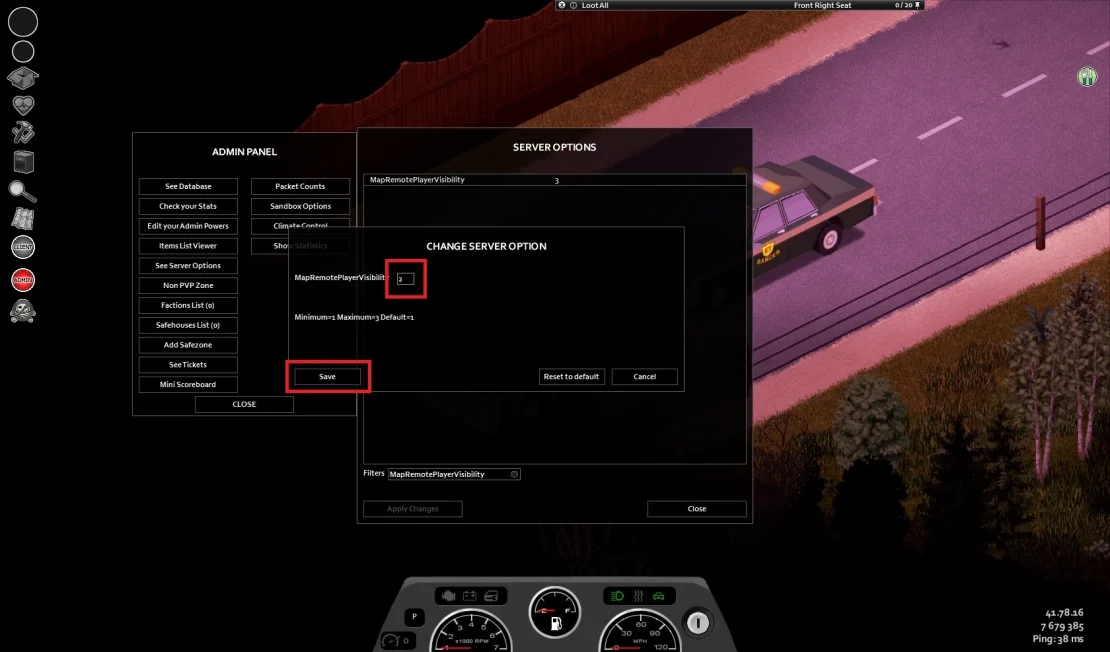
5. Click Apply Changes.
We hope that our intuitive web interface has allowed you to manage your Project Zomboid server easily. If you want to ask us any questions, feel free to contact us via e-mail, ticket or live chat!