Joining a Project Zomboid world is the first step if you want to play multiplayer with your friends. In this guide, we’ll show you step by step how to start playing online using two different methods: joining a server through the public server list or connecting via the Favorites list by entering the server’s IP address and port.
How to join Project Zomboid server with IP
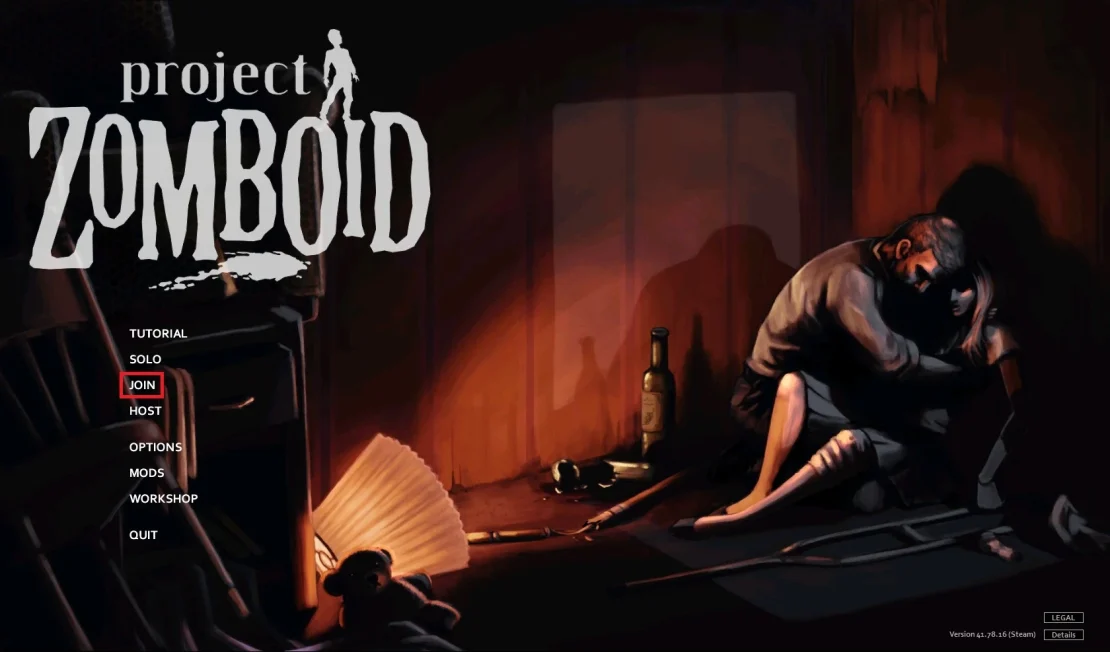
1. Go to Steam and launch the Project Zomboid game. Once you are in the main menu, click the Join option.
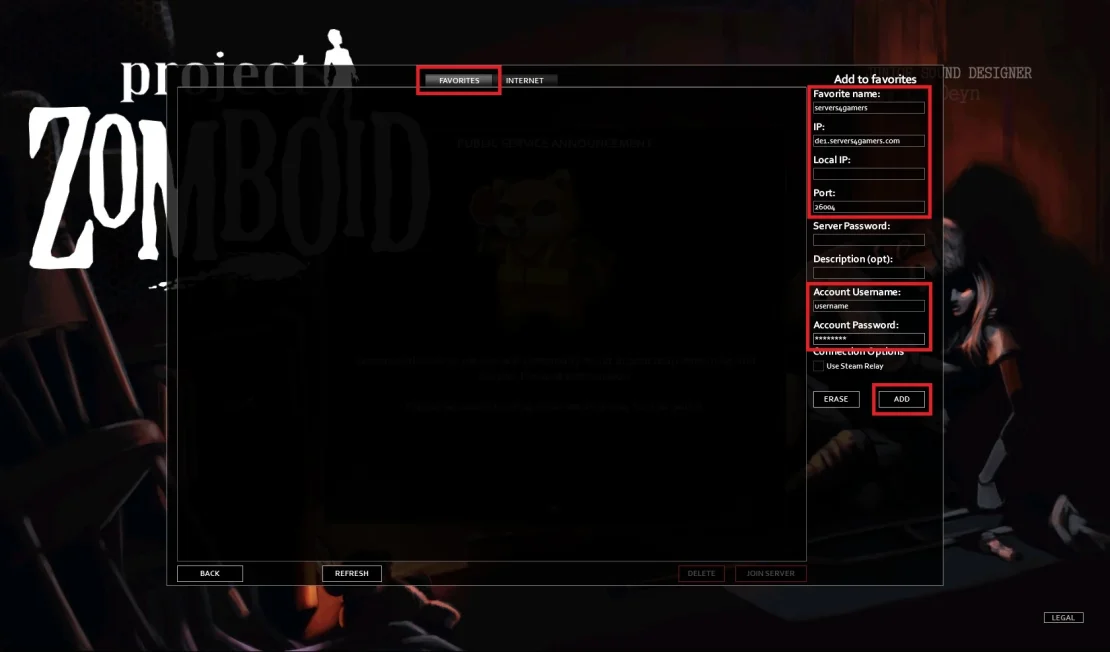
2. Go to the Favorites tab and look at the right side of the window. This is where you need to enter your server’s IP address and port (you can find this information in our control panel under Console or Network). Next, enter your username and user password, and if required, also the server password. Finally, click Add.
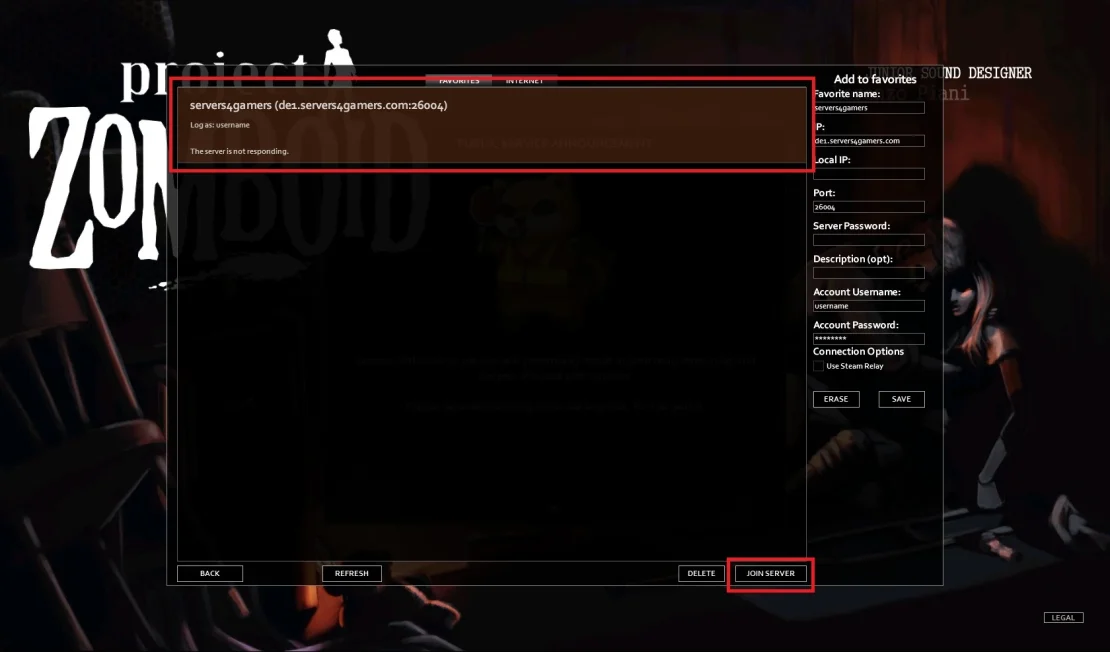
3. Join the game.
How to join Project Zomboid server via server list
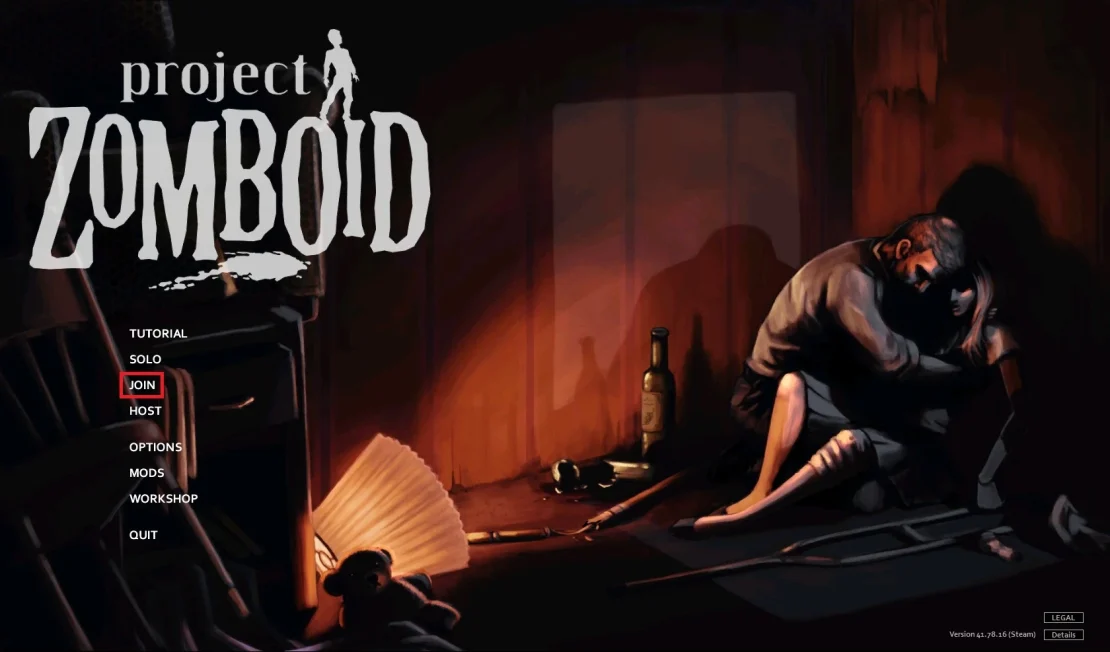
1. Go to Steam and launch the Project Zomboid game. Once you are in the main menu, click the Join option.
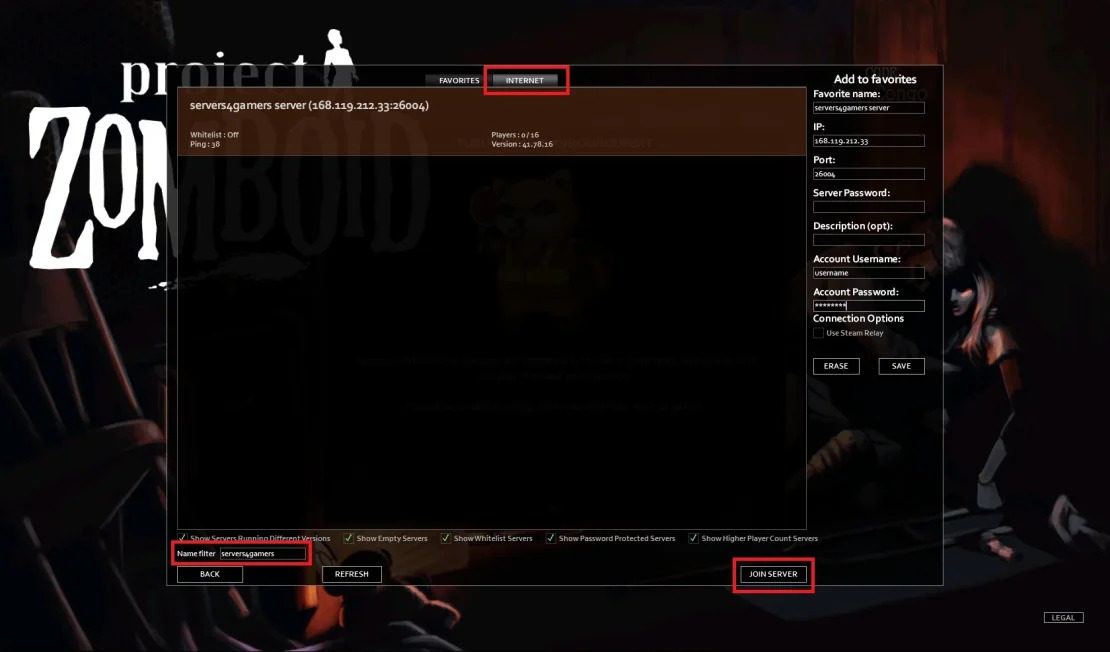
2. Go to the Internet tab and look at the bottom-left corner of the window. Here you can filter the server list by entering your server name (you can set the server name in our control panel under the Startup tab – don’t forget to restart the server after making changes). Once you find your server, click Join.
Common Connection Issues
Sometimes, even with a correct configuration, you may not be able to connect to a Project Zomboid server. In most cases, this is caused by small issues, and below are some common examples.
Incorrect username or password
Project Zomboid requires you to log in with a valid user account when connecting to a server.
Fix: make sure you are entering the correct username and password. Check for typos and remember that usernames and passwords are case-sensitive.
Incorrect server password
If a server password is set, entering it incorrectly will prevent you from joining.
Fix: check the server password in the Startup tab in our control panel and enter it again when connecting.
Server is not visible on the public list
If the server is set to private, it will not appear in the public server list.
Fix: go to the Startup tab in the control panel, enable the Public option, and then restart the server.
Incorrect IP address or port
Even a small mistake in the IP address or port can block the connection.
Fix: carefully check the address and port. It’s best to copy them directly from the control panel and paste them into the game to avoid typos.
Different game or server versions
If your game version does not match the server version, you won’t be able to connect.
Fix: make sure both your Project Zomboid game and the server are updated to the same version.
We hope that our intuitive web interface has allowed you to connect your Project Zomboid server easily. If you want to ask us any questions, feel free to contact us via e-mail, ticket or live chat!
This tutorial will show you how to connect Project Zomboid server